Image editor#
The CMS includes an image editor for making composition changes to images: crop, rotate in 90 degree steps, flip, and resize. Open it from the "Edit image" action on an image's detail view in the "Files" section.
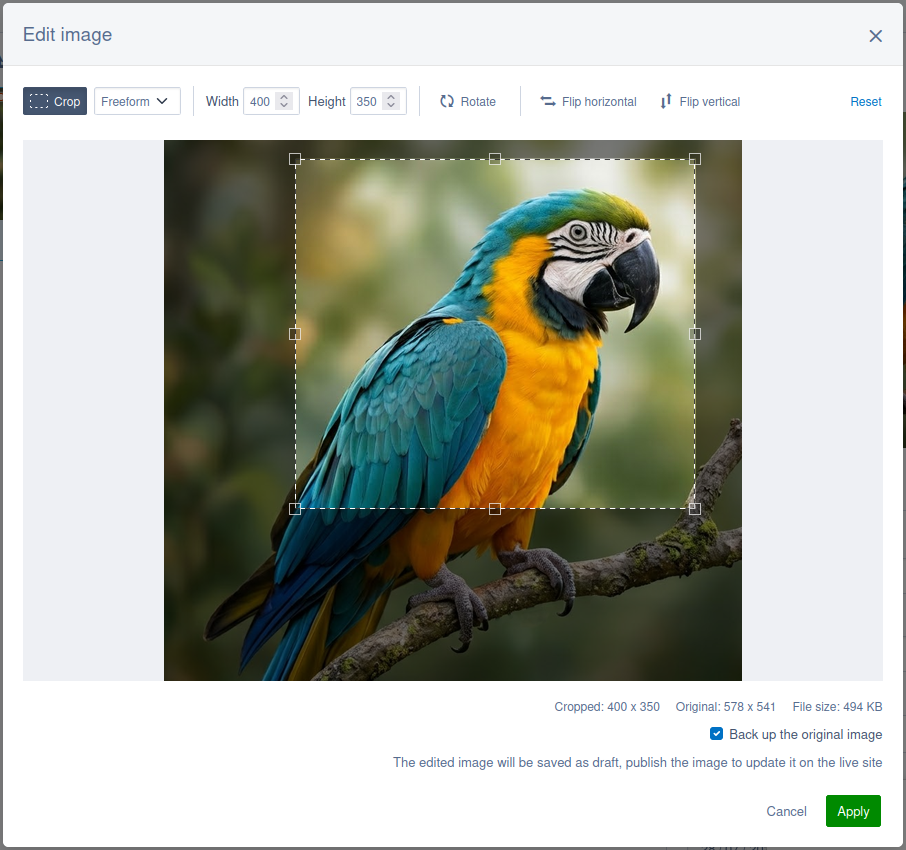
Applying an edit replaces the original file in place. The record keeps its ID, its folder, and its filename, so anything already pointing at the image (pages, blocks, and fields) resolves to the edited version without any change.
"Apply" stays disabled until a crop, rotate, flip, or resize has been chosen, so an edit that changes nothing cannot re-encode the image or leave a backup copy behind. Ticking the backup checkbox is not itself an edit.
Draft edits#
The replacement is written as a new draft version of the file, the same as the CMS's existing "replace file" action. The editor does not publish anything, so the published version is unchanged and the live site continues to serve the pre-edit image until the file is published.
Backing up the original#
Because the original's bytes are overwritten, the editor offers a "Back up the original image" checkbox. When it is ticked, the pre-edit bytes are copied into a new draft file in the same folder before the replacement is written.
The record is duplicated and the pre-edit bytes are written into it as its own stored asset, so replacing the original cannot corrupt the backup. The CMS names the backup using the same de-duplication it applies to colliding uploads, so beach.jpg is backed up as beach-v2.jpg, then beach-v3.jpg.
When the checkbox is unticked, no backup is made and the original bytes are overwritten. They can only be recovered if keep_archived_assets is enabled, which it is not by default.
Default state of the backup checkbox#
The checkbox starts ticked. Set backup_original_by_default to false to start it unticked:
# app/_config/image-editor.yml
SilverStripe\AssetAdmin\Model\ImageEditor:
  backup_original_by_default: false
Resize#
The editor can also resize the output. The aspect ratio is locked and cannot be unlocked: enter either a width or a height, and the other dimension is derived from the aspect ratio of the cropped image.
Resizing can only make the image smaller. Enlarging a raster image cannot add detail that is not already in it; it only stretches the existing pixels, so the editor caps the resize at the size the image already has. The smallest allowed size is 1 pixel, because a dimension of zero would leave no image to render.
The maximum is the size of the cropped image, not the original source file. A crop lowers it, and a 90 or 270 degree rotate swaps width and height, so after a quarter turn each axis is capped by the opposite side of the source. For example, a 4000 x 3000 source rotated a quarter turn presents as 3000 x 4000, so its width can be resized up to 3000 rather than 4000.
The modal shows an inline message with the current maximum and disables "Apply" while the value is invalid. The endpoint independently rejects an over-large dimension with a 400 response, so a request made outside the editor is validated too.
Customising what gets saved#
An edit makes up to two writes: the backup copy, then the replacement. Each write is bracketed by a pair of extension hooks. Apply an extension to ImageEditor to change what is saved, or to react once it has been saved.
| Hook | Called | Arguments |
|---|---|---|
onBeforeCreateBackup | After the backup holds the pre-edit bytes, before it is written | The unwritten backup Image, and the source it was copied from |
onAfterCreateBackup | After the backup has been written | The written backup Image, and the source it was copied from |
onBeforeReplaceOriginal | After the rendered bytes are on the source, before it is written | The unwritten source Image, and the transforms |
onAfterReplaceOriginal | After the replacement has been written | The replaced source Image, and the transforms |
The hooks are called only after the editor's permission and validation checks have passed. A pair is called only when the write it brackets happens, so if the author declines the backup, neither backup hook is called.
The $transforms argument is the validated edit used to render the image: the flip flags, the rotation, the crop ratios, and the resize. It is provided for context; changing it does not re-render the image.
Each onBefore hook receives the record with the bytes it is about to save already set on it, so $source->getString() returns the rendered image. Call setFromString() to replace those bytes, for example to add a watermark:
// app/src/Extensions/ImageEditorExtension.php
namespace App\Extensions;

use App\Service\Watermarker;
use SilverStripe\Assets\Image;
use SilverStripe\Core\Extension;

class ImageEditorExtension extends Extension
{
    protected function onBeforeReplaceOriginal(Image $source, array $transforms): void
    {
        $watermarked = Watermarker::create()->apply((string) $source->getString());
        $source->setFromString($watermarked, $source->getFilename());
    }
}
# app/_config/image-editor.yml
SilverStripe\AssetAdmin\Model\ImageEditor:
  extensions:
    - App\Extensions\ImageEditorExtension
Use the onAfter hooks for anything that should happen only once the write has succeeded, such as logging, notifications, or clearing a cache. The saved record is fully resolved only at this point: the backup's name is de-duplicated during its write, so onBeforeCreateBackup sees bird.jpg with an ID of 0, while onAfterCreateBackup sees the final bird-v2.jpg with a database ID.
// app/src/Extensions/ImageEditorExtension.php
namespace App\Extensions;

use Psr\Log\LoggerInterface;
use SilverStripe\Assets\Image;
use SilverStripe\Core\Extension;
use SilverStripe\Core\Injector\Injector;

class ImageEditorExtension extends Extension
{
    protected function onAfterCreateBackup(Image $backup, Image $source): void
    {
        Injector::inst()->get(LoggerInterface::class)->info("Backed up {$source->Name} as {$backup->Name}");
    }
}
WARNING
Do not use these hooks to check permissions or to abort an edit. Permissions are checked before rendering starts (see permissions), and a hook cannot cancel a write that has already happened: once the backup is written, it stays written.
Permissions#
The "Edit image" action is shown, and the API endpoint behind it succeeds, only when all of the following are true:
- The record is a raster
Image. SVG uploads are plainFilerecords and are excluded. - The member can edit the original image, because the edit modifies its bytes.
- The member can create files in the folder the original is in, when a backup will be written (the default).
The action on the detail view is a convenience only. The endpoint re-checks these permissions and is the security boundary.
The endpoint applies the create check only to an edit that actually writes a backup; an edit that declines the backup asks nothing of the folder. The detail-view action still requires create permission in every case, so a member who cannot create files in the folder does not see the editor at all. Otherwise they could edit an image with no backup to fall back on, which the default behaviour would have written for them.
Configuration#
Maximum source size#
Sources above a configurable megapixel limit are rejected before they are decoded, and the user is shown an error naming the limit, for example Exceeds 50 megapixel (width x height) limit. The default is 50 megapixels.
The limit is measured in pixels (width x height), not file size, because rendering an edit decodes the source into an uncompressed bitmap held in memory, and the size of that bitmap depends on the pixel count rather than the file size. Compression ratios vary widely, so a small file can decode to a bitmap large enough to exhaust PHP's memory limit.
# app/_config/image-editor.yml
SilverStripe\AssetAdmin\Model\ImageEditor:
  max_source_megapixels: 100
Set max_source_megapixels to 0 to remove the limit. A sufficiently large image can then exhaust PHP's memory limit.
Output quality#
Edited images are encoded in the same format as the source. By default they use the quality configured for the image backend, the same setting used for resampled images (see resampled image quality).
Set output_quality to a value between 1 and 100 to give the editor its own quality, leaving resampled images on the backend's:
# app/_config/image-editor.yml
SilverStripe\AssetAdmin\Model\ImageEditor:
  output_quality: 90
Leave it unset (or null) to follow the backend. The setting applies only to formats where quality is meaningful, such as JPEG and WebP.
Metadata and animation#
The edit re-encodes the image, and what survives that depends on the image backend's driver:
- Metadata and colour profiles. The default GD driver strips EXIF, IPTC, and XMP metadata and the ICC colour profile; Imagick preserves them.
- Animation. The GD driver flattens an animated GIF to its first frame, so the edited file is a still image.
Duplicate submission lock#
While an edit is being rendered, a short-lived lock keyed on the member and the source file rejects a second edit request for the same image, so a double submission cannot apply the edit twice or create two backup copies. The lock is released when the edit finishes, so its time-to-live only bounds how long an abandoned request holds it.
# app/_config/image-editor.yml
SilverStripe\AssetAdmin\Controller\AssetAdmin:
  edit_image_lock_ttl: 60
The lock is stored in a dedicated cache service, Psr\SimpleCache\CacheInterface.assetAdminImageEditor. If you customise that service it must remain a shared (not in-memory) cache, so the lock is visible across requests.